Step 1 : Connect your Instagram account
Step-by-step guide to connect your Instagram account.
Written By Antoine Wave
Last updated 7 months ago
If you run into any issue while connecting your account, feel free to reach out using the chat.
📚 Why we need access to your Instagram account ?
Wave is fully cloud-based and designed to operate like a real user, keeping your account safe. To safely automate your Instagram outreach, Wave needs :
Username & Password : To log into your account and send messages on your behalf.
Secret Key : For two-factor authentication (2FA). This keeps your account safe while allowing Wave to access it securely.
❌ This is NOT the 6-digit code you receive on your phone.
✅ We ask for the Secret Key, a long code made of letters & numbers, for example :7FYKETJVSODERYSESHHSZPN5UPSYI5FBCountry & City Selection : To simulate a normal connection from a location near you. Selecting a city close to where you usually access Instagram helps avoid suspicious login alerts or temporary blocks from Instagram.
🔐 How to get my 2FA secret key ?
💡 We strongly recommend doing this on desktop. It’s easier and less error-prone because Instagram shows a QR code.
→ Using Instagram for Desktop (recommended) 💻
If you already have 2FA enabled with an authentication app, you can disable it and then re-enable it.
Open this Two-factor authentication page (Settings > Accounts Center > Password and security > Two-factor authentication)
Click on your account
Select Authentication App and click Continue / Next
Click Copy Key → This is your Secret Key for Wave : make sure to keep it safe.
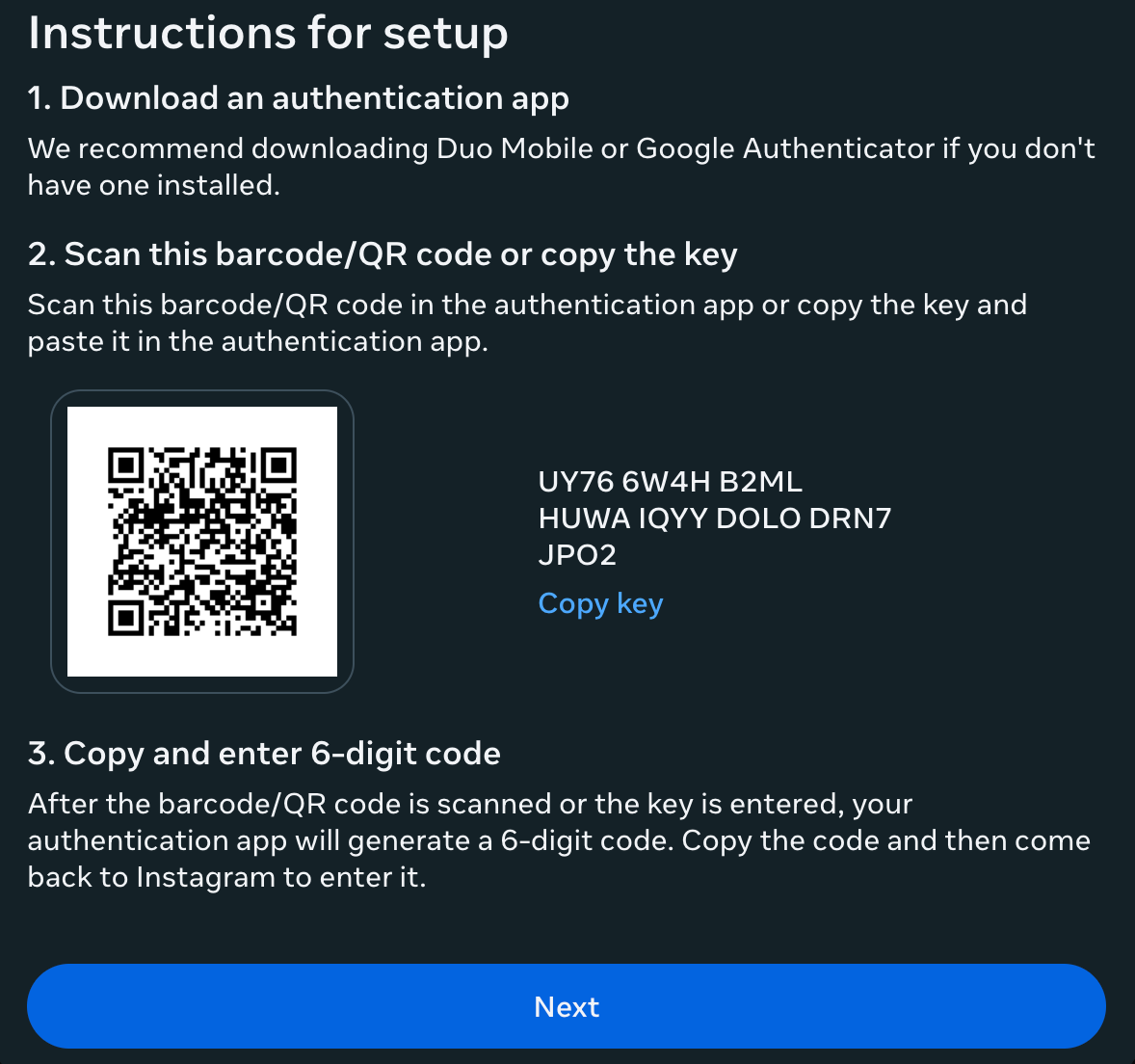
Open your authentication app (like Google Authenticator), tap
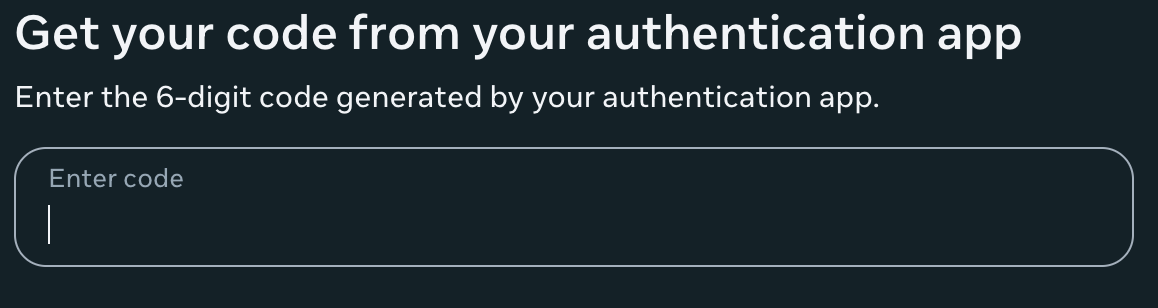
+and scan the QR code using Google AuthenticatorWrite the code generated by your authenticator app and paste it into Instagram to confirm.
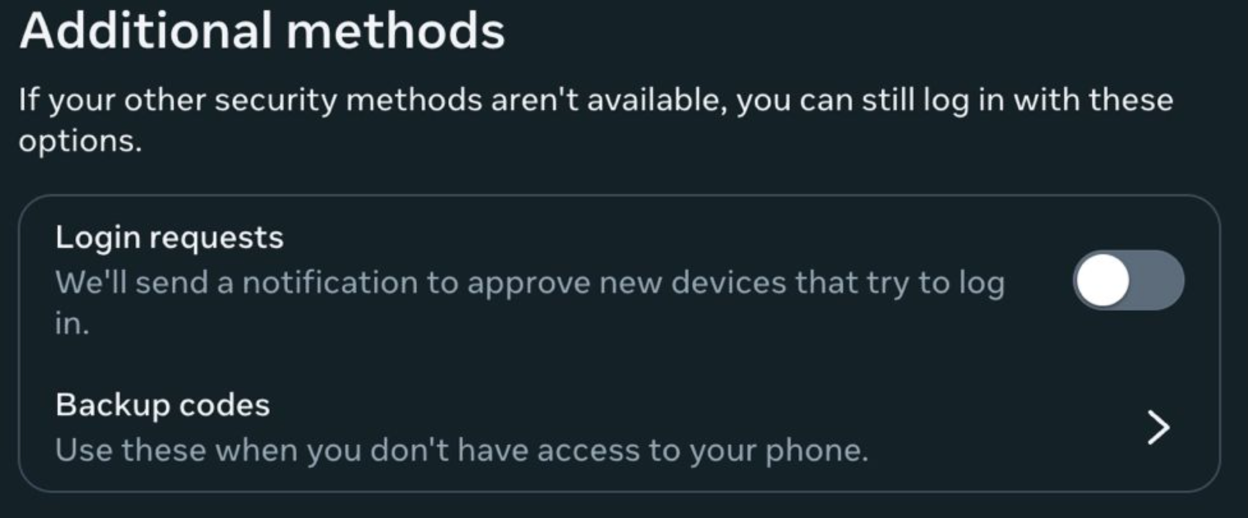
Make sure to disable “Login Requests” if they are enabled.
Return to Wave and enter your Secret Key.
→ You’re all set 🌊
→ Using Instagram App 📱
Open the Instagram app and navigate to : Settings > Accounts Center > Password and security > Two-factor authentication
Select Authentication App and tap Next
Tap Copy Key → This is your Secret Key for Wave : make sure to keep it safe.
Open your authentication app (like Google Authenticator) and tap
+and Enter a setup key. Paste your Secret Key and save.Copy the code generated by your app and paste it into Instagram to confirm.
Return to Wave and enter your Secret Key.
→ You’re all set 🌊
Was this helpful?
Still need help? Share an idea